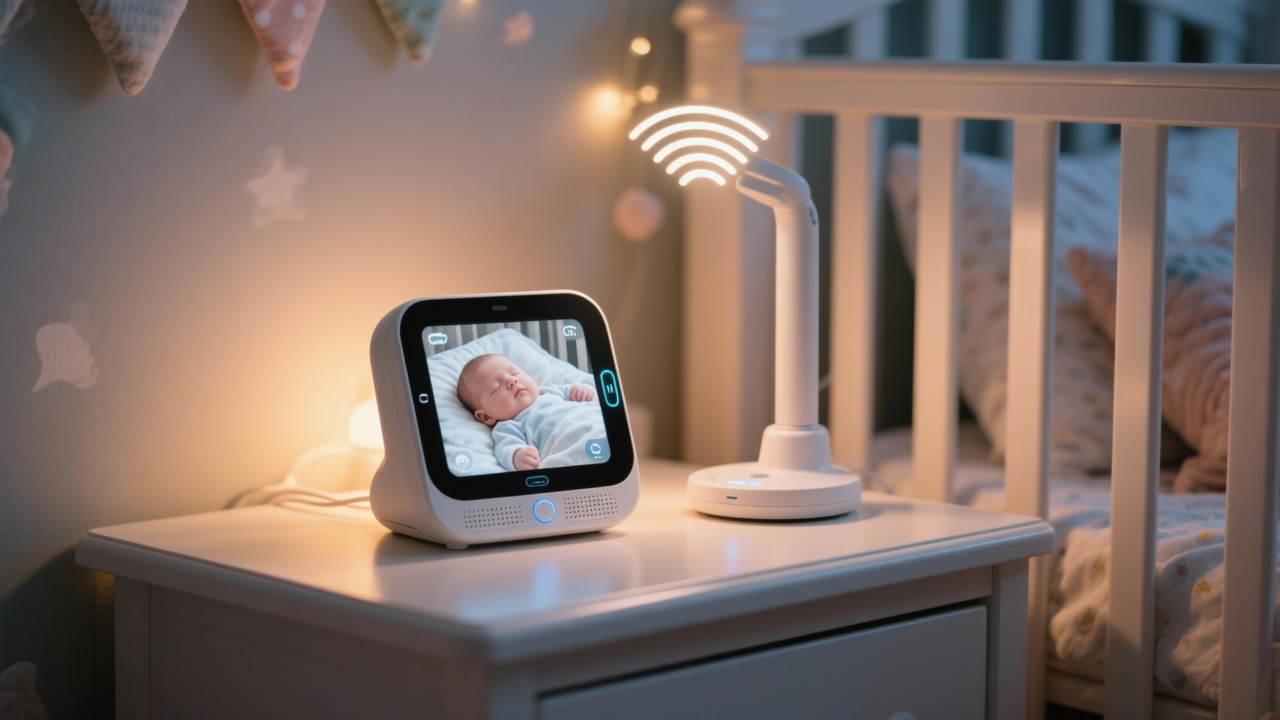
Baby Monitor Interference Troubleshooting Guide
It is two in the morning. Your baby has finally fallen asleep, and you are drifting off when the baby monitor goes silent. Then it crackles back to life with a burst of static, or the video feed freezes into a mosaic of pixelated blocks. For exhausted parents, a reliable baby monitor is not a luxury — it is a lifeline. When that monitor starts cutting out, dropping audio, or losing its video signal, the resulting anxiety can make sleep impossible.
Baby monitor interference is one of the most common complaints among new parents. The good news is that most interference problems have identifiable causes and practical solutions. This guide walks you through the technology behind baby monitors, explains why interference happens, and gives you a clear troubleshooting path to restore a dependable connection between you and your sleeping child.
Understanding Baby Monitor Technologies
Before diagnosing interference, it helps to understand what type of monitor you are using. Baby monitors fall into several broad categories, each with different technologies, frequencies, and vulnerability profiles.
Audio-Only Monitors
Audio-only monitors are the simplest and most traditional type. They transmit sound from a nursery microphone to a parent receiver. These monitors have been around for decades and remain popular because of their simplicity, affordability, and lower power consumption. Audio monitors typically operate on RF (radio frequency) signals and can use a variety of frequency bands depending on the model and era of manufacture.
Video Monitors (Non-WiFi)
Dedicated video monitors include a camera unit placed in the nursery and a parent unit with a built-in screen. These systems create their own closed, point-to-point wireless connection. They do not rely on your home WiFi network. The camera captures both video and audio, encodes the signal, and transmits it over a dedicated radio frequency to the handheld parent display. Because the connection is self-contained, these monitors are generally more resistant to certain types of interference but can still suffer from signal degradation.
WiFi and Smart Monitors
WiFi baby monitors connect to your home wireless network and stream audio and video to an app on your smartphone, tablet, or a dedicated hub. Examples include monitors from Nanit, CuboAi, Eufy, and others. These monitors offer advanced features like cloud recording, multi-camera support, and remote access from anywhere with an internet connection. However, because they share your home network bandwidth, they are susceptible to network congestion and WiFi-specific interference.
RF (Radio Frequency) Monitors
RF is a broad term that encompasses any monitor that transmits over radio waves rather than through a WiFi network. Many non-WiFi video monitors and all traditional audio monitors are RF monitors. They operate on licensed or unlicensed frequency bands and use various modulation and hopping techniques to maintain a connection between the camera or transmitter and the parent receiver.
How Frequency Bands Affect Performance
The frequency band your monitor operates on is one of the single most important factors in determining how susceptible it is to interference. Here is a breakdown of the most common bands.
The 2.4GHz Band
The 2.4 gigahertz band is the most crowded frequency in modern homes. It is used by WiFi routers (802.11b/g/n), Bluetooth devices, microwaves, cordless phones, wireless cameras, baby monitors, Zigbee smart home devices, and countless other gadgets. The 2.4GHz band offers good range and decent wall penetration, which is why so many devices use it. The trade-off is severe congestion. If your baby monitor operates on 2.4GHz and your home has a dozen other devices on the same band, interference is almost inevitable.
The 5GHz Band
The 5GHz band is less congested than 2.4GHz and offers higher data throughput, which is why it is preferred for streaming video on modern WiFi networks. It supports 802.11ac and 802.11ax (WiFi 6) standards. However, 5GHz signals have shorter range and poorer penetration through walls and solid objects compared to 2.4GHz. Some newer WiFi baby monitors operate on 5GHz, which reduces interference from other household devices but may struggle with range in larger homes.
The 900MHz Band
Older analog baby monitors sometimes operated in the 900MHz range. Lower frequencies travel farther and penetrate walls more effectively than higher frequencies. The 900MHz band is far less crowded than 2.4GHz, which gives these monitors a natural interference advantage. However, analog 900MHz monitors are largely obsolete, offer poor audio quality, and have no encryption, making them insecure.
DECT Technology
DECT (Digital Enhanced Cordless Telecommunications) operates in the 1.9GHz band, which is reserved exclusively for voice and data communication devices. Because this band is not shared with WiFi, Bluetooth, or microwaves, DECT monitors enjoy a remarkably interference-free experience. Many premium audio-only and some video baby monitors use DECT 6.0 technology. The trade-off is that DECT signals do not penetrate walls as well as lower frequencies, and the bandwidth available is limited, making it less suitable for high-definition video streaming.
Common Causes of Baby Monitor Interference
Understanding the frequency bands sets the stage for identifying what is actually disrupting your monitor. Here are the most common culprits.
WiFi Network Congestion
If you have a WiFi baby monitor, it shares bandwidth with every other device on your network. Streaming services, video calls, online gaming, smart home devices, and background downloads all compete for the same wireless capacity. When the network is saturated, your monitor may experience dropped frames, audio stuttering, or complete disconnection. This is especially common in the evening hours when household internet usage peaks.
Even non-WiFi monitors operating on 2.4GHz can be disrupted by a busy WiFi network, because the monitor’s signal and the WiFi signal are occupying overlapping portions of the same frequency spectrum.
Bluetooth Devices
Bluetooth headphones, speakers, keyboards, mice, fitness trackers, and smart home hubs all operate in the 2.4GHz band. While Bluetooth uses frequency-hopping techniques to minimize its own interference footprint, the cumulative effect of multiple Bluetooth devices can degrade the signal quality of a baby monitor sharing the same band.
Microwave Ovens
This is one of the most well-known and surprisingly impactful sources of interference. Microwave ovens emit electromagnetic radiation at approximately 2.45GHz to heat food. The shielding on consumer microwaves is imperfect, and significant electromagnetic leakage occurs during operation. If your baby monitor operates near 2.4GHz, running the microwave — even for 60 seconds — can cause complete signal dropout or severe static. The kitchen is often on the other side of the house from the nursery, but the interference radius of a microwave can extend surprisingly far.
Cordless Phones
Older cordless phones, particularly those operating on 2.4GHz, are notorious for causing baby monitor interference. When the phone rings or a call is active, the base station and handset communicate over the same frequency band as many baby monitors. Modern DECT 6.0 phones operate on 1.9GHz and avoid this problem entirely, but if you or a neighbor has an older 2.4GHz cordless phone, interference is likely.
Neighboring Baby Monitors
In apartment buildings, condominiums, and densely packed neighborhoods, multiple baby monitors may be operating simultaneously within range of each other. If two monitors are on the same or overlapping frequencies, they can cross-interfere. You might hear another family’s baby crying through your monitor, or your monitor may experience persistent static and signal drops because it is competing with a neighboring unit for the same frequency space.
Thick Walls and Physical Obstacles
Radio signals attenuate (weaken) as they pass through physical materials. The degree of attenuation depends on the material and the frequency. Concrete, brick, metal framing, plaster with wire mesh, and energy-efficient windows with metallic coatings are particularly effective at blocking radio signals. Even standard drywall and wood framing add up when a signal must pass through multiple walls, floors, and ceilings. If your monitor’s transmitter and receiver are separated by two or more exterior walls, the signal may be too weak to maintain a reliable connection regardless of interference from other devices.
Distance and Range Limitations
Every monitor has a maximum rated range, but that range is measured in ideal, open-air conditions with no obstructions. Real-world range is typically 25 to 50 percent of the advertised specification. If you are using the parent unit at the far edge of your property, in the backyard, or on a different floor of a large home, you may simply be exceeding the practical range of the device.
Signal Range vs Real-World Performance
Manufacturers advertise range figures like “1,000 feet” or “300 meters.” These numbers are measured in open-field conditions with no walls, no interference, and clear line of sight. In a real home, the effective range is dramatically shorter.
As a general rule, expect the following real-world performance relative to advertised range:
- Open floor plan with minimal walls: 60 to 75 percent of advertised range.
- Standard home with interior walls: 40 to 60 percent of advertised range.
- Multi-story home with exterior walls between transmitter and receiver: 25 to 40 percent of advertised range.
- Large property with use in the yard or detached garage: highly variable, often 20 to 30 percent.
If you are consistently experiencing dropouts at the edge of your home, the issue may not be interference at all — it may simply be that the monitor’s range is insufficient for your living space.
FHSS Technology Explained
Many modern digital baby monitors use a technique called Frequency-Hopping Spread Spectrum (FHSS). Instead of transmitting on a single fixed frequency, FHSS devices rapidly switch (hop) between dozens or hundreds of channels within a frequency band. The hopping pattern is synchronized between the transmitter and receiver and changes thousands of times per second.
FHSS provides two major benefits. First, it makes the signal extremely resistant to narrowband interference. If a microwave or a WiFi router is blasting noise on one frequency, the monitor simply hops past that frequency on the next cycle and continues transmitting cleanly. Second, FHSS provides a basic level of security because the hopping pattern is unique to each monitor pair, making it difficult for another receiver to intercept the signal.
If your monitor uses FHSS (most digital monitors manufactured after 2010 do), it is already well-equipped to handle many common interference sources. Persistent problems with an FHSS monitor usually indicate an extreme interference environment, a range issue, or a hardware defect.
Analog vs Digital Monitor Differences
The distinction between analog and digital monitors is critical when discussing interference.
Analog monitors transmit a continuous radio wave that directly represents the audio signal. They are simple and inexpensive but extremely vulnerable to interference. Any signal on the same frequency — a neighboring monitor, a cordless phone, radio static — will be heard as noise or crosstalk in the parent unit. Analog monitors also offer zero security; anyone with a receiver on the same frequency can listen in.
Digital monitors convert audio (and video) into digital data packets before transmission. They use error correction, encryption, and often FHSS to maintain signal integrity. Digital monitors are far more resistant to interference because the receiver can detect and correct corrupted data packets rather than reproducing the corruption as audible static. Most monitors sold today are digital, but if you are using a very old monitor or an extremely budget model, it may still be analog.
If you can hear other people’s conversations or other babies through your monitor, you are almost certainly using an analog unit, and upgrading to a digital monitor will resolve the interference problem immediately.
Smart Monitor Features and Their Bandwidth Needs
WiFi baby monitors offer compelling features: high-definition video, two-way audio, temperature and humidity sensors, sleep analytics, breathing motion detection, and cloud-based video history. Each of these features consumes bandwidth.
A standard-definition video stream requires approximately 1 to 2 Mbps of sustained bandwidth. High-definition (1080p) video requires 3 to 6 Mbps. If your monitor is streaming 1080p video to the cloud while you are also watching a 4K movie, running a Zoom call, and downloading updates on three smartphones, your network is simply overloaded.
To determine if bandwidth is the issue, check your router’s quality of service (QoS) settings. Many modern routers allow you to prioritize traffic to specific devices. Assigning high priority to your baby monitor ensures that its data packets are transmitted first, even when the network is busy.
Additionally, consider whether your internet upload speed is sufficient for cloud-connected monitors. Many home internet plans offer fast download speeds but limited upload bandwidth. A monitor uploading continuous video to the cloud can saturate a slow upload connection, causing the entire network to degrade.
Step-by-Step Troubleshooting Guide
When your baby monitor starts cutting out, follow these steps in order to isolate and resolve the problem.
Step 1: Identify the symptom. Is the audio cutting out, the video freezing, or both? Is there static, or is the signal dropping completely? Static and distortion suggest interference. Complete dropouts suggest range limitations or connection failures.
Step 2: Check the distance. Bring the parent unit or your phone into the same room as the camera. If the signal is perfect at close range but degrades at distance, you have a range problem, not an interference problem.
Step 3: Eliminate obvious interference sources. Turn off the microwave, unplug nearby Bluetooth speakers, and move cordless phone base stations away from the monitor’s transmitter. Observe whether the signal improves.
Step 4: Check your WiFi environment. If you have a WiFi monitor, log into your router and check how many devices are connected. Run a speed test. If your network is heavily loaded, try disconnecting non-essential devices or enabling QoS prioritization for the monitor.
Step 5: Change the WiFi channel. If your monitor operates on 2.4GHz WiFi, log into your router and switch to a less congested channel. Channels 1, 6, and 11 are the only non-overlapping channels in the 2.4GHz band. Use a WiFi analyzer app on your phone to see which channels your neighbors are using and select the least crowded one.
Step 6: Reposition the camera and receiver. Even small changes in position can make a significant difference. Move the camera away from thick walls, metal objects, and large appliances. Elevate the camera as high as possible. Reposition the parent unit or router to reduce the number of walls between it and the camera.
Step 7: Power cycle everything. Turn off the monitor, camera, and router. Wait 30 seconds. Turn the router on first, wait for it to fully boot, then power on the camera and parent unit. This clears temporary network glitches and forces fresh frequency negotiations.
Step 8: Update firmware. Check the manufacturer’s website or app for firmware updates. Manufacturers regularly release updates that improve wireless stability, fix bugs, and enhance interference handling.
Step 9: Factory reset and re-pair. If problems persist, perform a factory reset on the monitor and re-pair the camera and parent unit from scratch. This eliminates any corrupted configuration that may be causing connectivity issues.
Step 10: Test in a different location. If possible, test the monitor in a different home or a different part of your home. If the problem disappears, the issue is environmental interference specific to the original location.
Router Placement and Channel Optimization
For WiFi baby monitors, your router’s placement and configuration have an outsized impact on performance.
Router placement matters. Place your router in a central location in your home, elevated off the floor, and away from thick walls, metal filing cabinets, mirrors, and aquariums. Avoid placing the router inside a cabinet or behind a television. If the nursery is on the second floor and the router is in the basement on the opposite end of the house, the signal must pass through significant obstacles before reaching the monitor.
Choose the right band. If your router is dual-band or tri-band, connect the baby monitor to the 5GHz band if it is within reasonable range of the router. The 5GHz band is less congested and offers faster speeds. If the monitor is far from the router or separated by multiple walls, use the 2.4GHz band for better range despite the congestion.
Use channel bonding wisely. On the 2.4GHz band, stick to 20MHz channel width rather than 40MHz. A 40MHz channel occupies more spectrum and is more likely to overlap with neighboring networks, increasing interference. On the 5GHz band, 40MHz or 80MHz channel widths are generally fine because there is more available spectrum.
Consider a mesh network. If your home is large or has a challenging layout, a mesh WiFi system with nodes placed strategically can ensure strong coverage in the nursery. Place a mesh node on the same floor as the nursery, ideally just outside the nursery door, to provide a strong local signal for the monitor.
Securing Your WiFi Baby Monitor from Hacking
Interference is not the only wireless concern with baby monitors. WiFi monitors that are not properly secured can be accessed by unauthorized users, creating a serious privacy and safety risk. There have been documented cases of hackers accessing unsecured baby monitors and speaking through the two-way audio feature.
To secure your WiFi baby monitor:
- Change the default password on the monitor immediately after setup. Use a strong, unique password.
- Ensure the monitor’s firmware is always up to date.
- Connect the monitor to a secure, password-protected WiFi network using WPA2 or WPA3 encryption.
- Disable remote access features if you do not need them. If the monitor only needs to work locally, configure it to operate on your local network only.
- Create a separate guest network or IoT network for smart home devices, including the baby monitor, to isolate them from your primary devices.
- Disable UPnP (Universal Plug and Play) on your router, as it can automatically open ports that expose devices to the internet.
- Choose a monitor from a reputable manufacturer that provides regular security updates and has a clear privacy policy.
Best Practices for Monitor Placement
Proper placement of both the camera (or transmitter) unit and the parent unit can dramatically reduce interference and improve signal reliability.
Camera placement:
- Position the camera as high as possible, ideally mounted on a wall or shelf near the ceiling. Height reduces the number of obstacles between the camera and the receiver.
- Keep the camera at least three to five feet away from the crib, following safe sleep guidelines and preventing the child from reaching the camera or its cables.
- Avoid placing the camera directly behind large metal objects, inside metal shelving, or near the home’s electrical panel.
- Keep the camera away from the nursery’s WiFi router if they share the same band, to reduce self-interference.
- Point the camera so that the signal path to the parent unit passes through the fewest possible walls.
Parent unit placement:
- Keep the parent unit within the monitor’s effective range. If you need to use it in the yard, test the signal at the boundary of your property before relying on it.
- Avoid placing the parent unit near other wireless devices, microwaves, or cordless phone bases.
- If using a smartphone app, keep your phone’s WiFi antenna unobstructed. Thick phone cases with metal components can degrade WiFi reception.
When Interference Indicates a Defective Unit
Not every connectivity problem is caused by environmental interference. Sometimes the monitor itself is faulty. Signs that your monitor may be defective include:
- The monitor worked perfectly in the same environment for months and then suddenly began experiencing persistent issues.
- Interference occurs even when the camera and parent unit are in the same room, just a few feet apart.
- The monitor exhibits the same problems in a completely different location (test at a friend’s house or in a different part of town).
- You notice physical damage to the antenna, housing, or internal components.
- The monitor randomly restarts, displays error messages, or fails to pair even after factory resets.
- Other units of the same monitor model work fine in similar environments.
If you suspect a hardware defect, contact the manufacturer’s customer support. Most reputable brands offer warranties of one to two years. Document the problem with timestamps and descriptions of your troubleshooting steps before calling, as this will expedite the warranty process.
When to Upgrade Your Monitor
Sometimes the most effective solution to persistent interference is replacing the monitor entirely. Consider upgrading if:
- You are using an analog monitor. Any digital monitor will be a massive improvement in both interference resistance and security.
- Your current monitor operates on 2.4GHz and your home is saturated with 2.4GHz devices. A DECT-based audio monitor or a 5GHz WiFi monitor may perform better.
- Your monitor does not use FHSS technology. Modern FHSS monitors handle interference far more gracefully.
- Your monitor lacks firmware update support. Manufacturers that stop releasing updates are no longer improving the product’s wireless performance or security.
- Your home has changed. A monitor that worked well in a small apartment may be inadequate in a larger home with more walls and more wireless devices.
- You need features your current monitor does not offer, such as HD video, multiple camera support, or smart home integration.
Top-Rated Monitors with Best Interference Resistance
While specific models change over time, certain categories and brands consistently perform well in interference-prone environments:
DECT-based audio monitors are the gold standard for interference-free audio. Because they operate on the dedicated 1.9GHz band, they are essentially immune to WiFi, Bluetooth, and microwave interference. Brands like VTech and Panasonic offer highly rated DECT audio monitors.
Dedicated FHSS video monitors from brands like Infant Optics, Eufy (non-WiFi models), and HelloBaby create their own closed wireless connection using frequency-hopping technology. Because they do not depend on your home network, they are unaffected by WiFi congestion. The Infant Optics DXR-8 Pro, for example, uses a dedicated connection with automatic channel switching and has consistently received high marks for reliability.
Tri-band WiFi monitors from companies like Nanit and Miku connect to your WiFi network but benefit from modern router features like dedicated 5GHz or 6GHz bands, QoS prioritization, and mesh networking. These monitors work best in homes with robust, well-configured WiFi infrastructure.
Hybrid monitors that offer both a dedicated local connection and optional WiFi connectivity give you the best of both worlds. You can use the dedicated connection for day-to-day reliability and enable WiFi only when you need remote access.
When shopping for a new monitor, look for these specifications: digital signal processing, FHSS or DECT technology, automatic channel selection, firmware update support, and a warranty of at least one year. Read recent reviews specifically mentioning interference performance, as real-world user experiences are more informative than manufacturer specifications.
Conclusion
Baby monitor interference is frustrating, but it is almost always solvable. The key is understanding what type of monitor you have, what frequency band it operates on, and what environmental factors are competing for that same wireless space. Start with the basics: eliminate obvious interference sources, reposition your equipment, and ensure you are within the monitor’s effective range. If problems persist, optimize your WiFi network, update your firmware, and consider whether your monitor’s technology is suited to your home environment.
For parents using older analog monitors, upgrading to a modern digital unit with FHSS or DECT technology is the single most impactful change you can make. For WiFi monitor users, network optimization and router placement are the most important factors. And for everyone, proper camera and receiver placement can make the difference between a rock-solid connection and a frustratingly unreliable one.
Your baby monitor is one of the most important tools in your parenting toolkit. Taking the time to understand and optimize its wireless performance is an investment in better sleep, lower anxiety, and greater peace of mind — for both you and your baby.
Authoritative Resources
Frequently Asked Questions
Why does my baby monitor keep cutting out?
Common causes include WiFi congestion from other devices, distance from the router, thick walls blocking signal, interference from other wireless devices (microwaves, cordless phones), or outdated firmware. Check your monitor’s frequency band and ensure it’s within range.
What is the best frequency for baby monitors?
DECT 6.0 GHz monitors offer the clearest audio with no interference from other devices. WiFi monitors (2.4 GHz or 5 GHz) offer video but may experience congestion. FHSS technology helps reduce interference across all types.
How can I improve my baby monitor’s range?
Position the router centrally, reduce obstacles between camera and parent unit, update firmware, change WiFi channels to less congested ones, or consider a monitor with longer advertised range. Avoid placing near microwaves or cordless phone bases.
Are WiFi baby monitors secure?
Modern WiFi baby monitors use encryption (WPA2/WPA3) to protect your video feed. Choose monitors from reputable brands, keep firmware updated, use strong passwords, and enable two-factor authentication when available.
Disclaimer: This article is for general informational purposes only and is not a substitute for professional medical advice. Always consult your pediatrician.